Configuring Menus
Edit navigation and footer menus, add links, organise menu items, and save updated menu structures.
Overview
The Menus section allows you to create, edit, and organise the links that appear in your site’s navigation and footer areas. You can add pages, posts, or custom links, then drag and drop them to control their order and create dropdown sub-items. Menu locations can be assigned to areas such as the Primary Navigation or Footer Menu to control where they display on the website.z
Select a menu
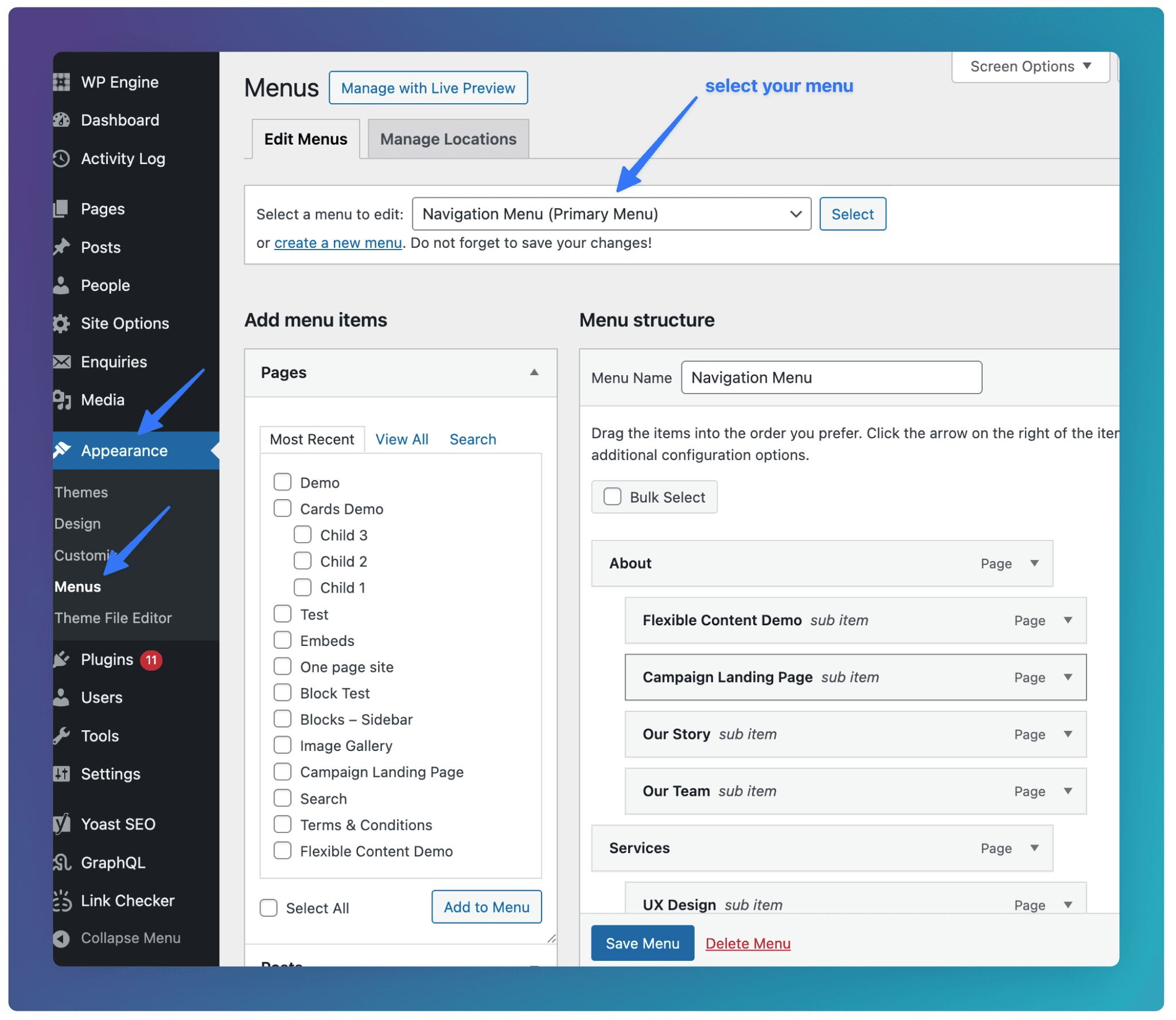
Choose from one of the 3 Menus to edit:
Navigation Menu: The primary navigation links shown at the top of each template
Footer Menu: The primary footer links shown at the top of the footer component.
Secondary Footer Me∂∂nu: The secondary footer links shown at the bottom of the footer component.
Adding items
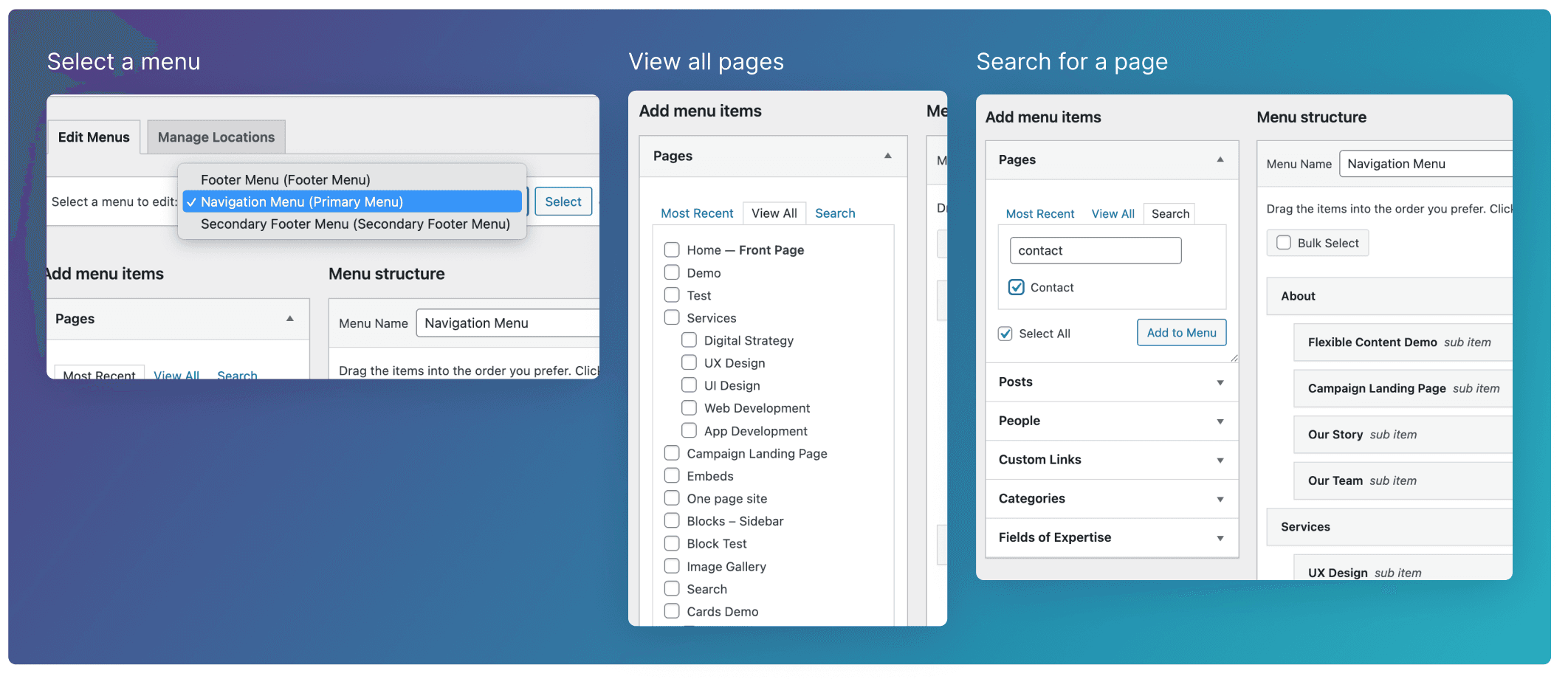
You can list all pages of the site by clicking the View All tab. You can then choose from the list of pages, and then click Add to Menu. Alternatively, use Search tab to locate a specific page you have in mind.
Custom links
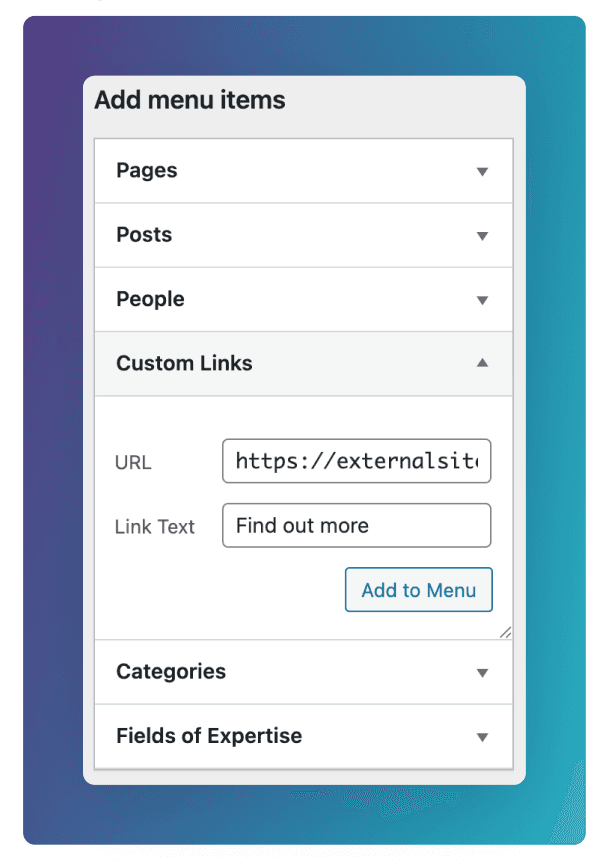
To add an external link to the menu, go to the Custom Links section. Here you can enter a custom URL and Link Text.
Reordering Items
Once you have added your items to the menu structure, you can click and drag them to customise the order. You can also nest them underneath parent items if you’d like to create a submenu that displays on hover (see About and Services).
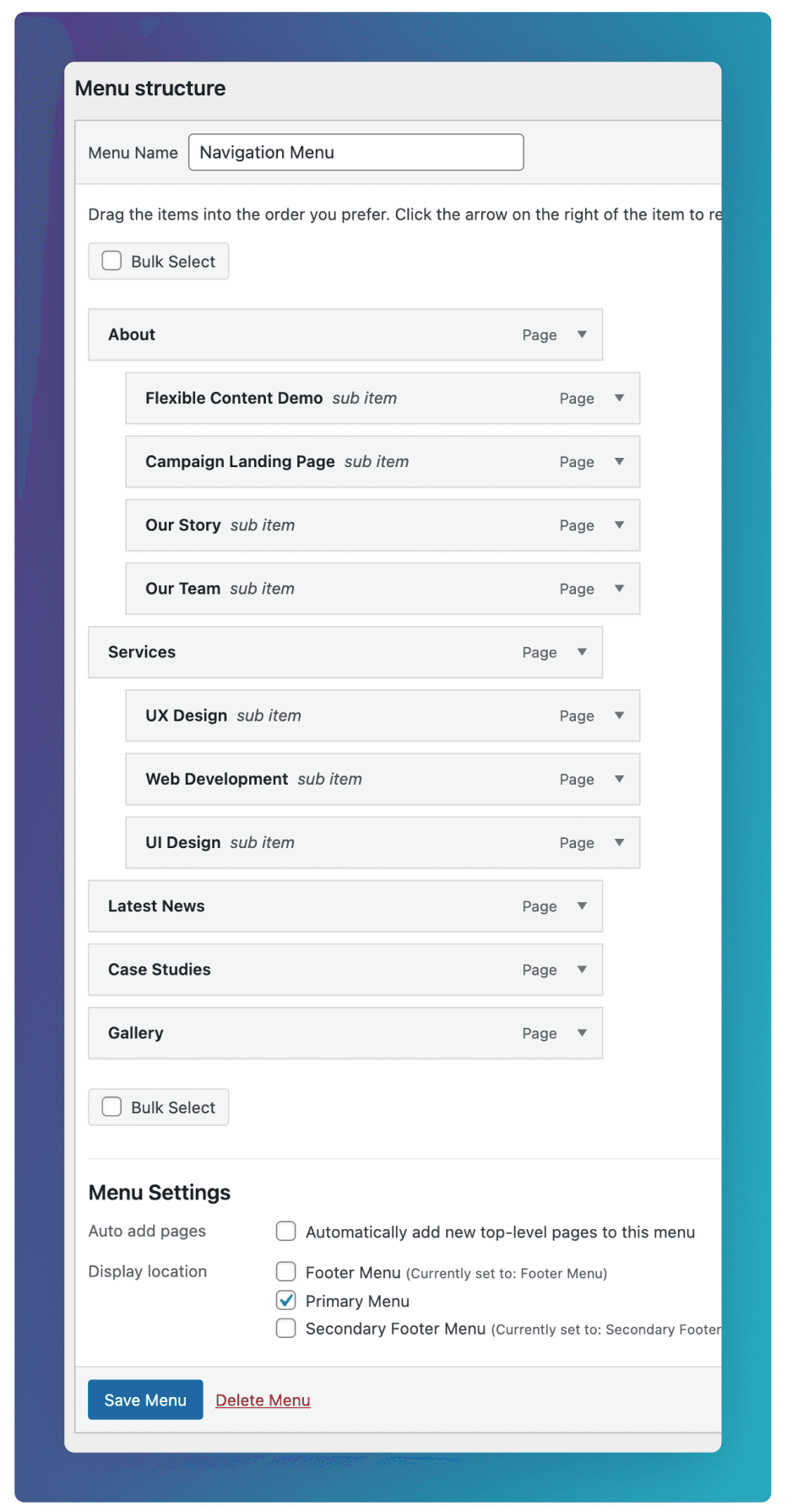
Saving the menu
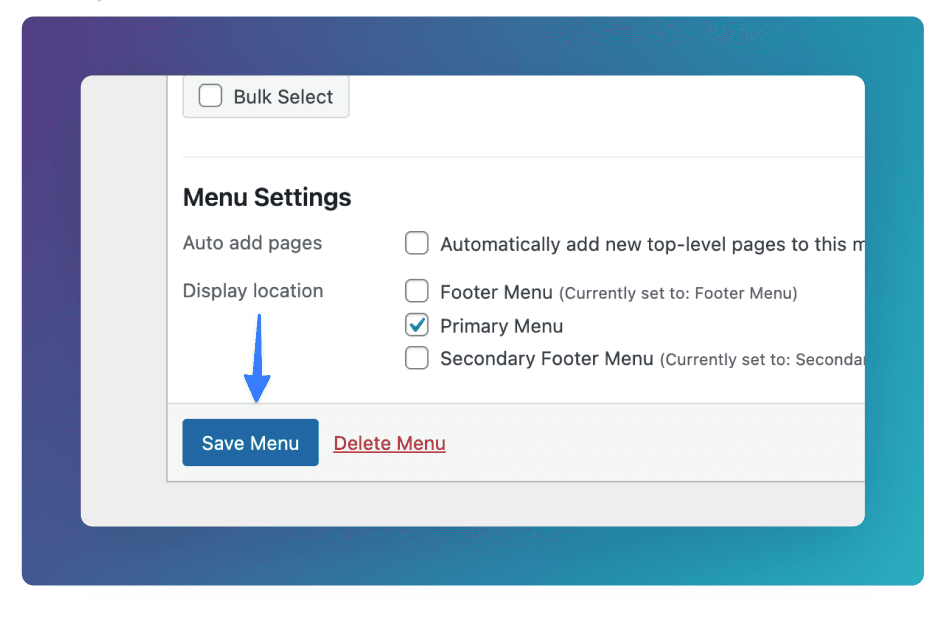
Once you have finalised your menu. Click the Save Menu button at the bottom of the page.