The Edit Screen
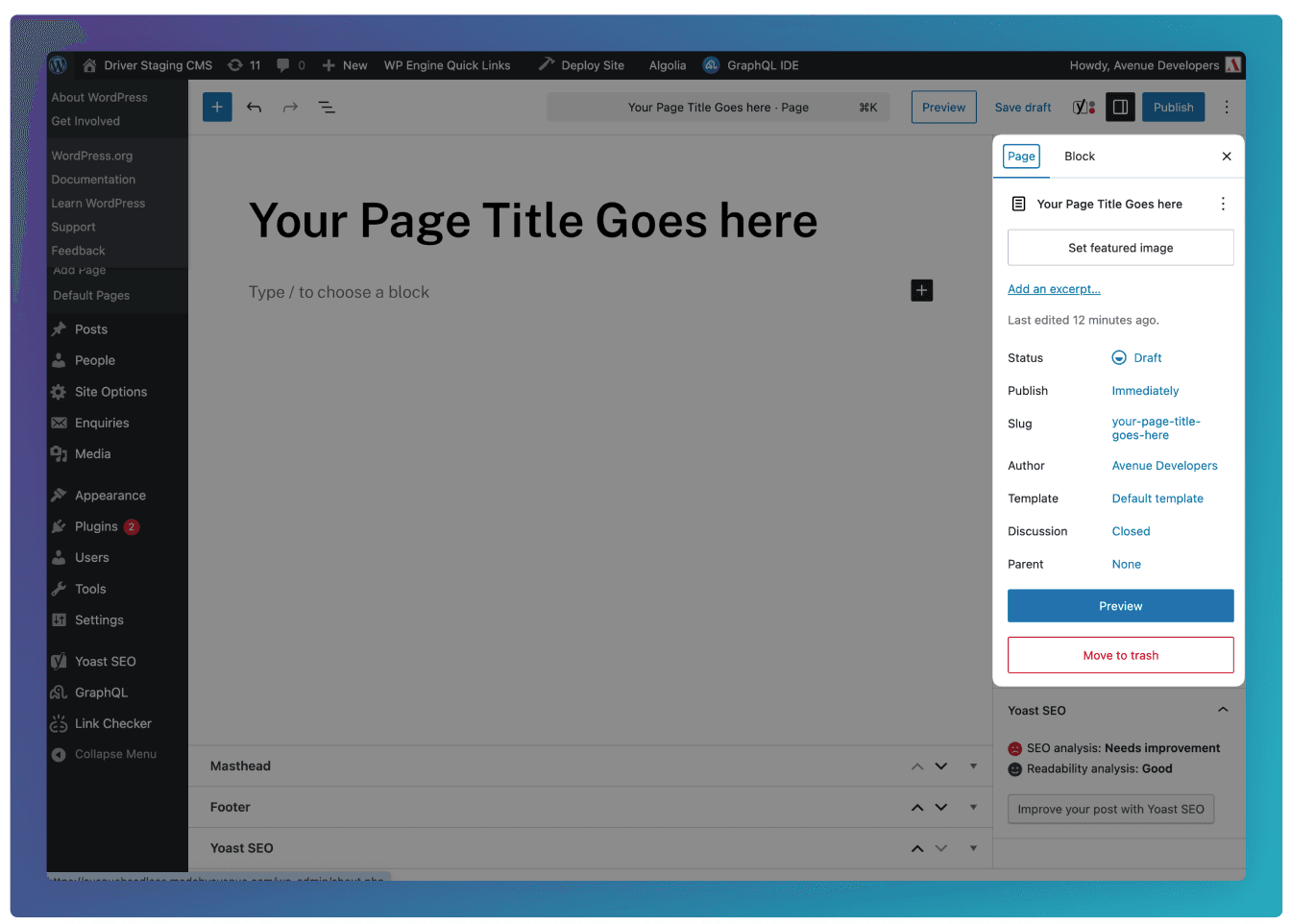
Understand the main page editing interface, including the content editor, structured sections, preview controls, sidebar settings, status, slug, and template options.
Overview
This section will go over how to create pages, and how to navigate the edit screen in order to create your content. Most of the topics covered here will be apply to all of the post types i.e Pages, Posts and People. However, we will focus on the Pages section for this tutorial.
How to add a page
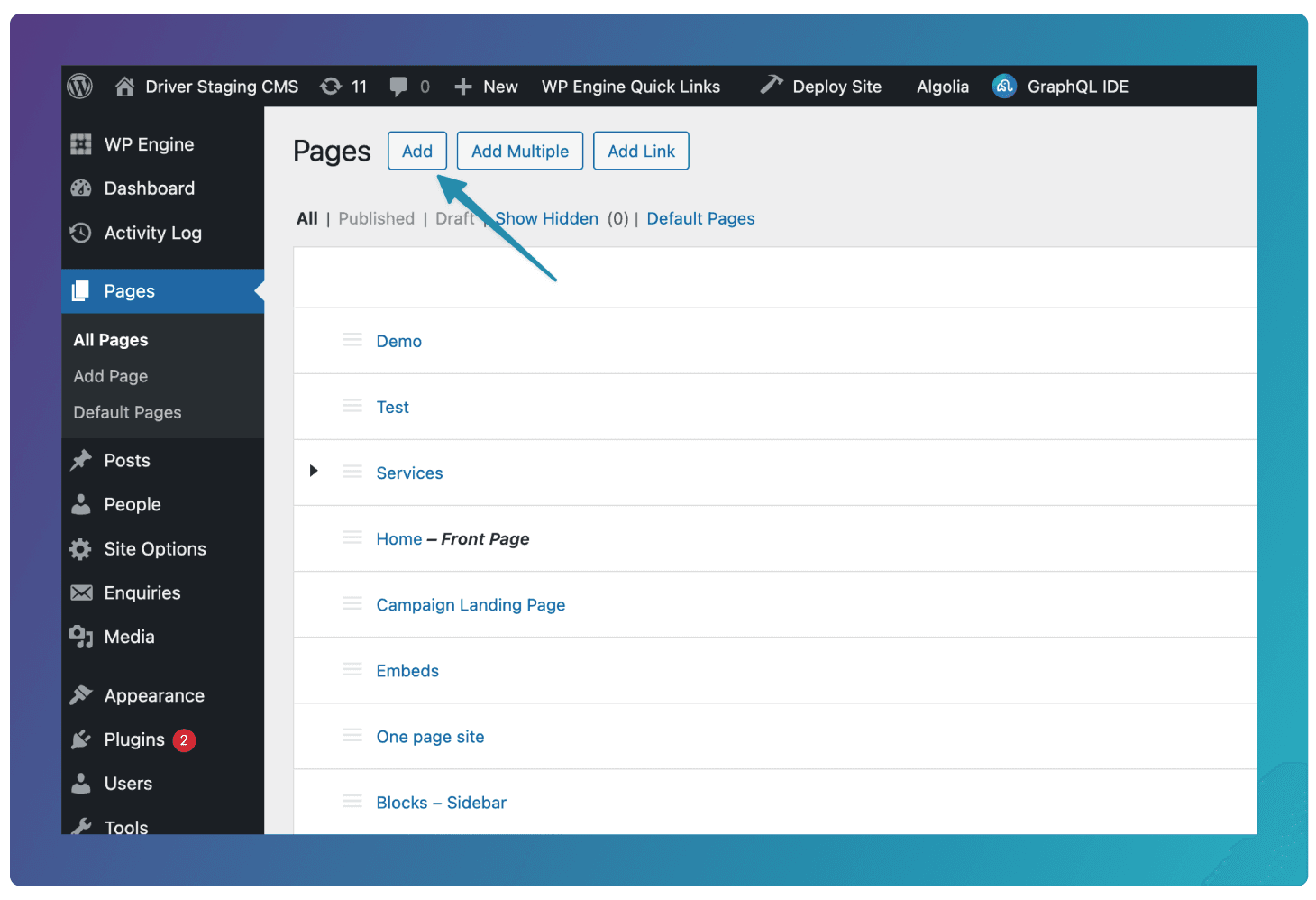
To add a page, click the Add button at top of the Pages section.
The Content Editor
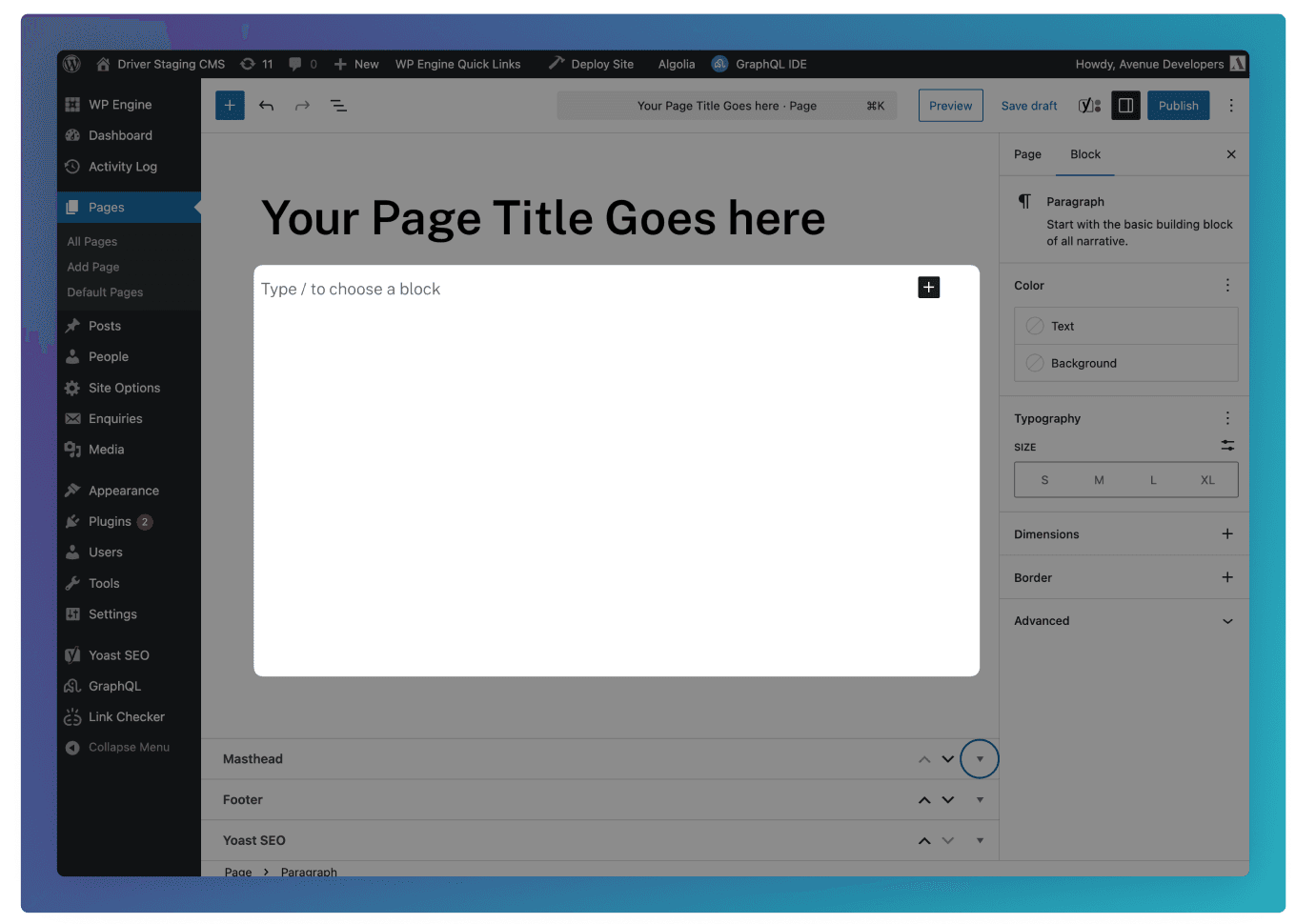
The Content Editor (main canvas) is where you build the page itself using blocks. This is where text, images, galleries, embeds, and custom blocks are added, arranged, and edited to form the visible page content. See here for more on adding blocks.
The Structured Sections
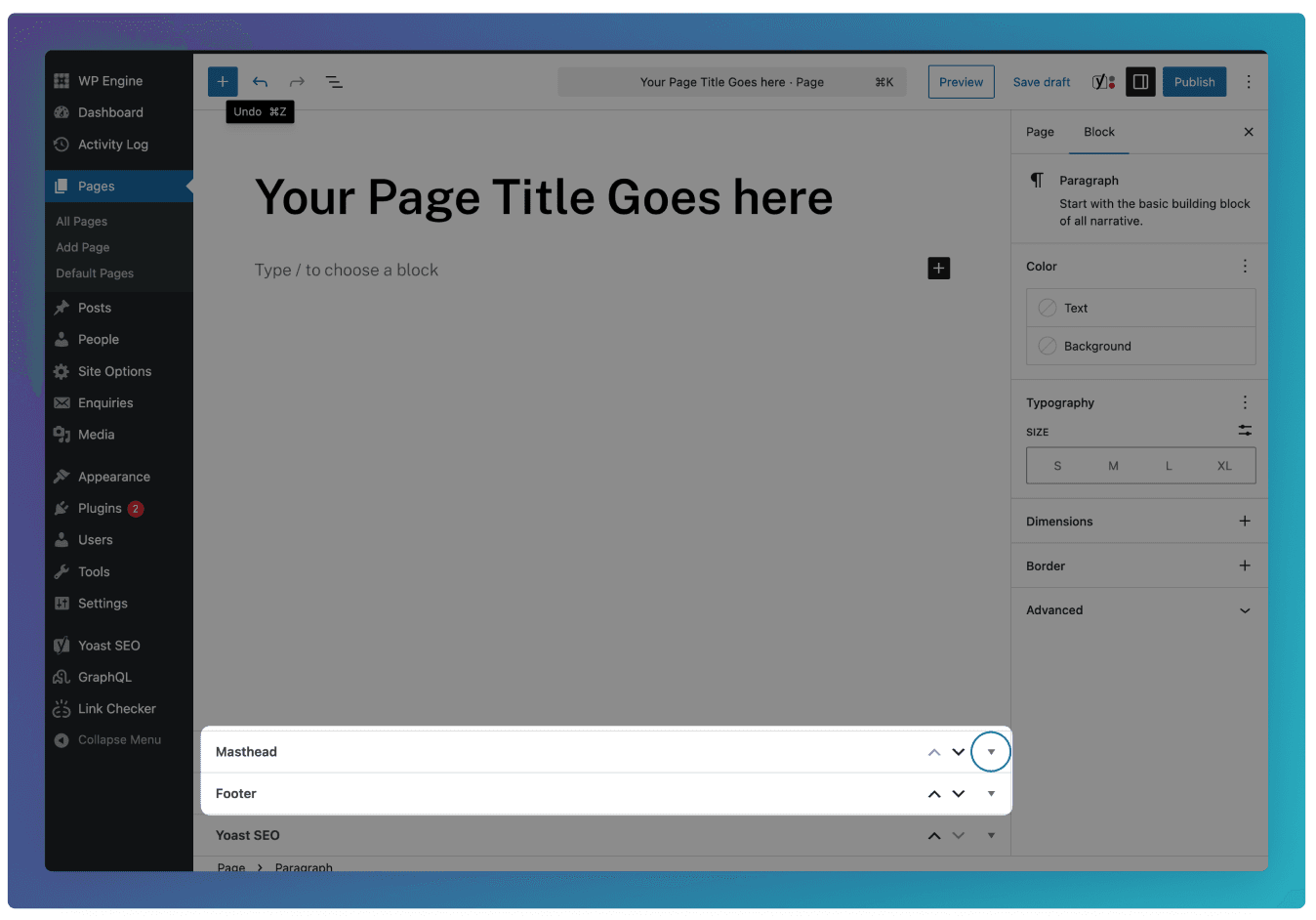
The Structured Sections shown near the bottom of the editor, such as Masthead and Footer, represent global layout areas defined by the site setup. These are separate from the main content and are usually shared across multiple pages.
Here you will also find fields specific to certain templates. See here for more on templates.
Previewing Changes
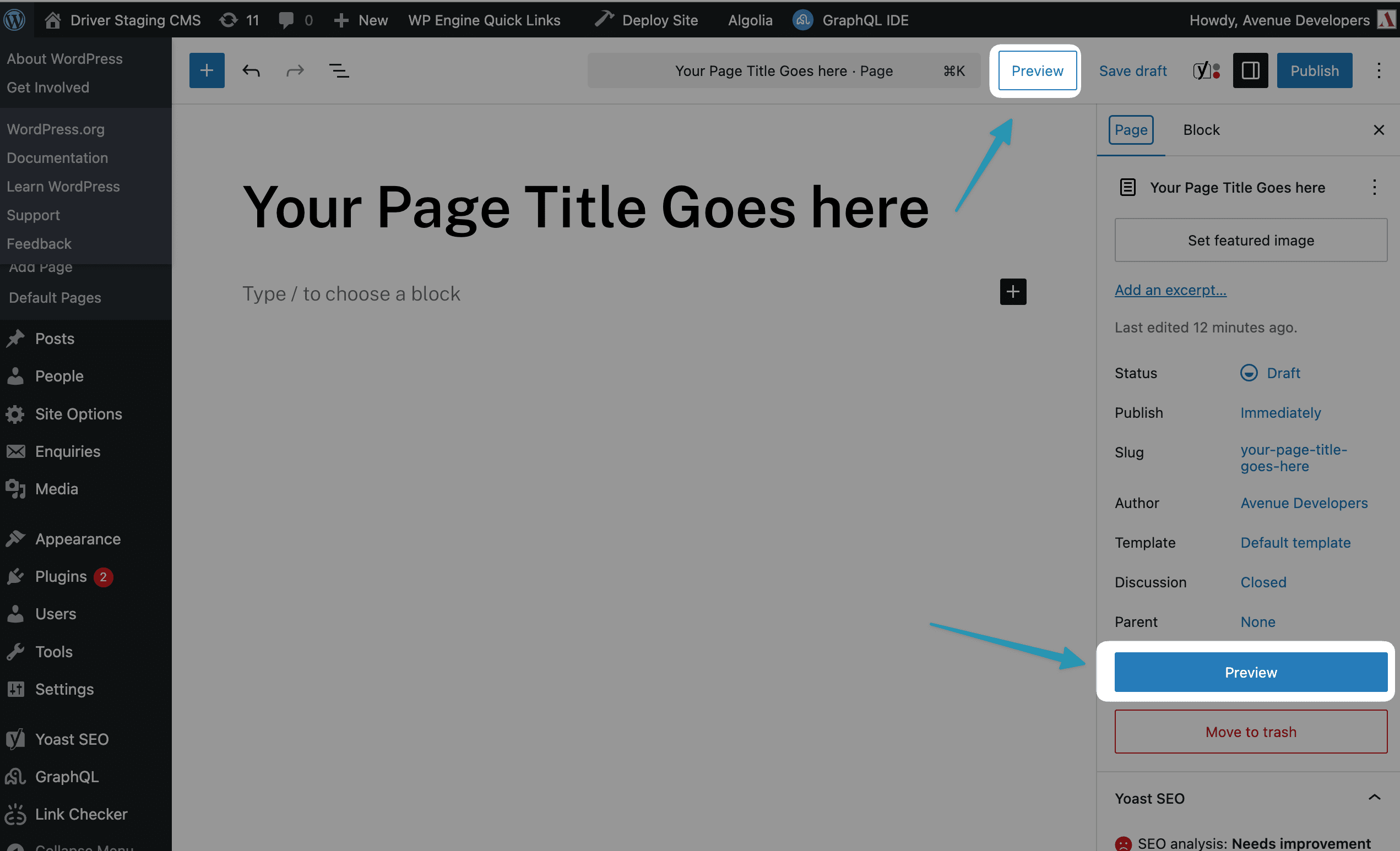
Previewing lets you see how your changes will appear on the live site before they are published. It shows the page using the site’s real layout, styles, and templates, so you can check spacing, content flow, and responsive behaviour without affecting what visitors see, helping you catch layout or content issues before making the changes public.
The Settings Sidebar
The Settings Sidebar on the right is split into Page and Block tabs. The Page tab controls page-wide settings such as status, publish timing, URL slug, author, template, featured image, and discussion options, while the Block tab changes depending on which block is selected in the editor.
Featured Image
The Featured Image has 2 functions on the site. First, any image uploaded here will be the default image displayed in the Masthead of the page (note: this can be overridden by uploading an image in the Masthead field group).
Secondly, this Featured Image will be used if this post is displayed in any Cards or Related Content across the site.
Status
Put your page in Draft if you want to make edits to your page without it being viewable by the public.
Slug
This is the URL path that this page will exist on. By default it follows your Page Title, however this can be customised to something more appropriate. For example, a page titled What’s On could have a slug of /events.
Template
This is only applicable to the Pages section on the site. See here for more on different templates.