Managing Users
Add new CMS users, choose appropriate roles, and understand the access level each role provides.
How to add users
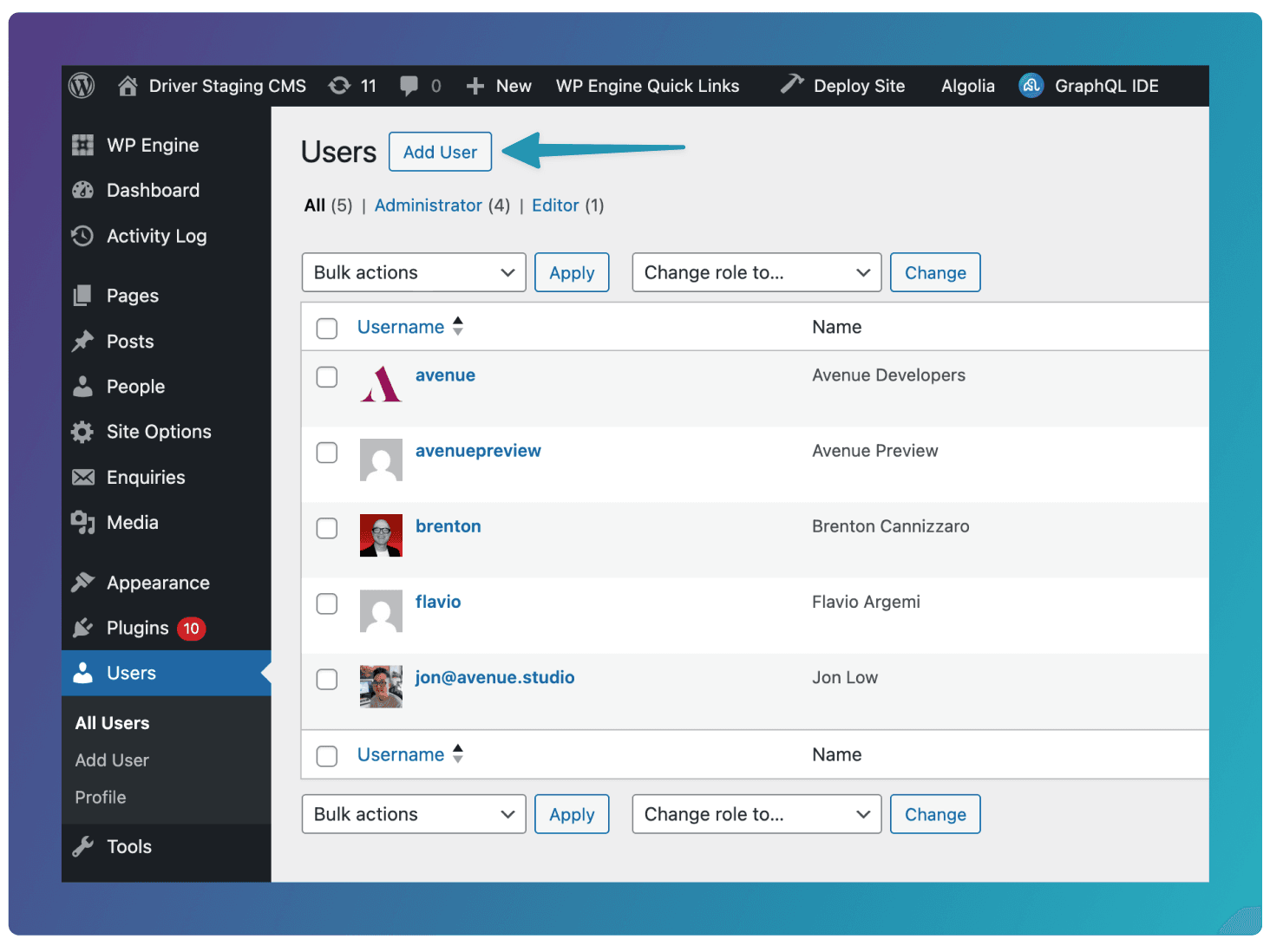
Navigate to the Users section on the CMS Dashboard, and click this Add User button.
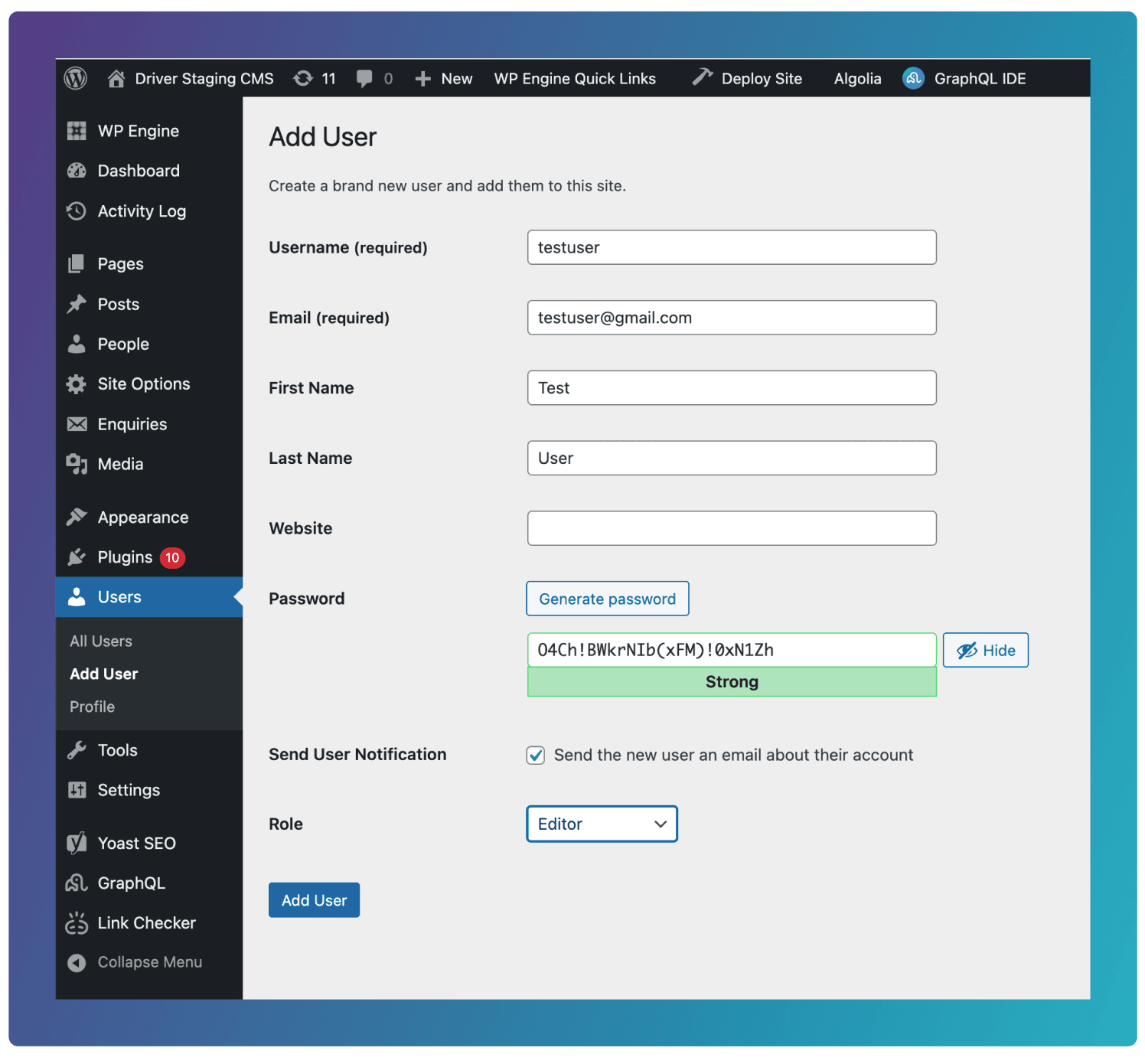
Next, fill the following form. For the Username, a simple pattern to follow is to use the user’s first name and last name without any spaces i.e janedoe.
Leave the Password as is. Ensure that you check the Send User Notification checkbox so that the user is sent an email, and can then set their own password. See below for more on different user roles.
Different User Roles
Each role has certain levels of permissions on the site. The 3 different roles you’ll want to use on the site are:
Administrator: has full control of the website, including managing users, settings, plugins, themes, and all content. This role is responsible for site configuration and should be limited to trusted users only.
Editor: can create, edit, publish, and delete all content, including pages and posts created by other users, but cannot change site settings or manage users. This role is suited to people responsible for reviewing and maintaining content across the site.
Author: can create, edit, and publish their own posts only. They cannot edit others’ content or access site-wide settings, making this role appropriate for contributors who regularly write or manage their own content.
Click the link below to see more information about the different types of user roles.
Navigating the CMS
Learn where key content types and site settings live in the CMS dashboard, including pages, posts, people, media, menus, and site options.
The Edit Screen
Understand the main page editing interface, including the content editor, structured sections, preview controls, sidebar settings, status, slug, and template options.